A look at the 1.7 development release: a friendlier workspace manager, encrypted backups, clipboard attachments, and less friction between your desktop and your AI coding environment.
In my previous post, I described the idea behind oc-box: give OpenCode a Linux environment it can freely work in, without making my everyday host system its playground.
That is still the idea. But oc-box has become much more comfortable to use.
The published 1.7.243.dev0 development release brings together a terminal dashboard, more convenient session management, encrypted workspace and conversation backups, ways to bring screenshots and documents into a conversation, and improvements to history copying and upgrades.
In other words: more freedom for the agent, and a better view of what it is doing.
This is an experimental development release, not a new stable recommendation. The dashboard and newer integrations are available to try, with unfinished validation documented openly.
The same Linux playground, without rebuilding it every morning
AI coding gets more interesting when the agent can actually install a missing compiler, try an SDK, run a database, or adjust its development tools.
oc-box gives unmodified OpenCode a persistent, rootless Podman environment for that work. OpenCode and its configured MCP servers, plugins, formatters, and development tools run inside the container. Your selected project stays available at the same path, including Git history, untracked files, and unfinished edits.
There is still a choice of Tumbleweed, Leap, Ubuntu, Debian, Fedora, Arch, or Alpine. Installed tools and the private home survive ordinary stop-and-resume cycles. You can rebuild the container OS without treating your conversations and project files as disposable.
Resource limits, explicit GPU/NPU device access, maintenance terminals, and read-only diagnostics are still part of the picture. The new interface sits on top of that foundation.
Meet the dashboard
The most visible addition is an optional terminal dashboard:
oc-box tui
It is a workspace manager, not another chat interface. OpenCode keeps its own native conversation UI. The dashboard gives you somewhere to look after the environments around it.
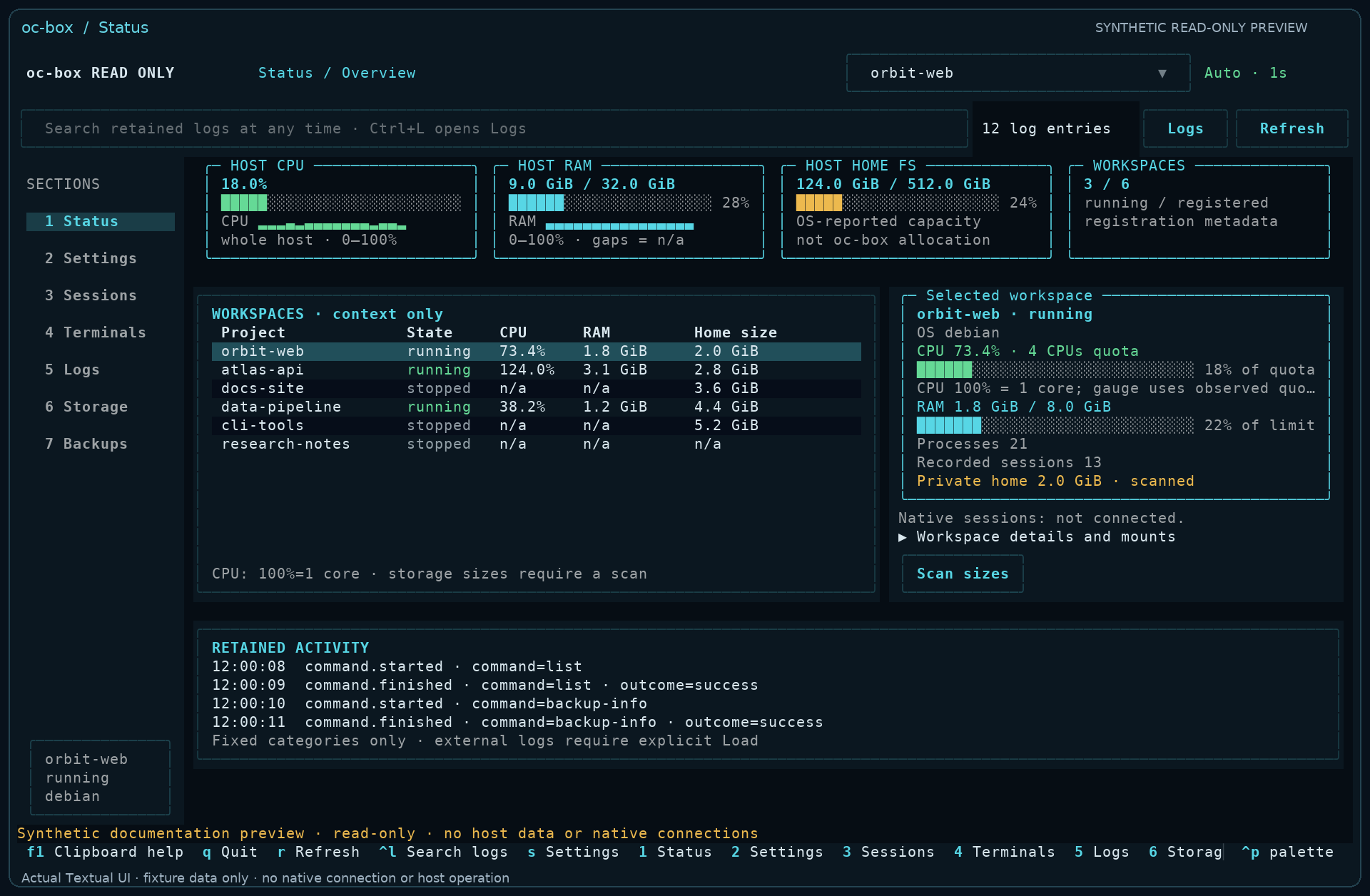
There are seven sections:
- Status: host and workspace resource information, selected-workspace details, and activity.
- Settings: dashboard display and session preferences, without pretending to be a live CPU/RAM control panel.
- Sessions: browse conversations, find roots and children, keep favorites, and explicitly connect to a source.
- Terminals: attach to an existing native session’s persistent shell.
- Logs: search and filter the activity journal without digging through terminal scrollback.
- Storage: see host-session, selected-workspace, and all-workspace inventories separately.
- Backup/restore: review encrypted archive operations from the same interface.
Opening the manager does not automatically start a workspace or unlock the vault. A read-only mode lets you look around without enabling workspace-changing controls: less command memorization, without a collection of surprise actions.
One workspace, more than one way to use it
Sometimes I want OpenCode’s normal terminal interface. Sometimes a browser is more convenient. Sometimes I just need the persistent session shell.
The OpenCode 2.x integration lets those clients work alongside one another in the same private workspace—not a separate agent environment for every window.
The browser has gained a tab strip for open conversations. Supported clients can align it with the conversation selected in the native TUI, or you can choose a session explicitly.
Closing a conversation tab and deleting its history are different things. Saved tabs are separate from retained conversations, and archived conversations stay available without becoming automatic resume targets. OpenCode’s saved native preferences, such as notifications, also remain local to the workspace rather than being overwritten on every refresh.
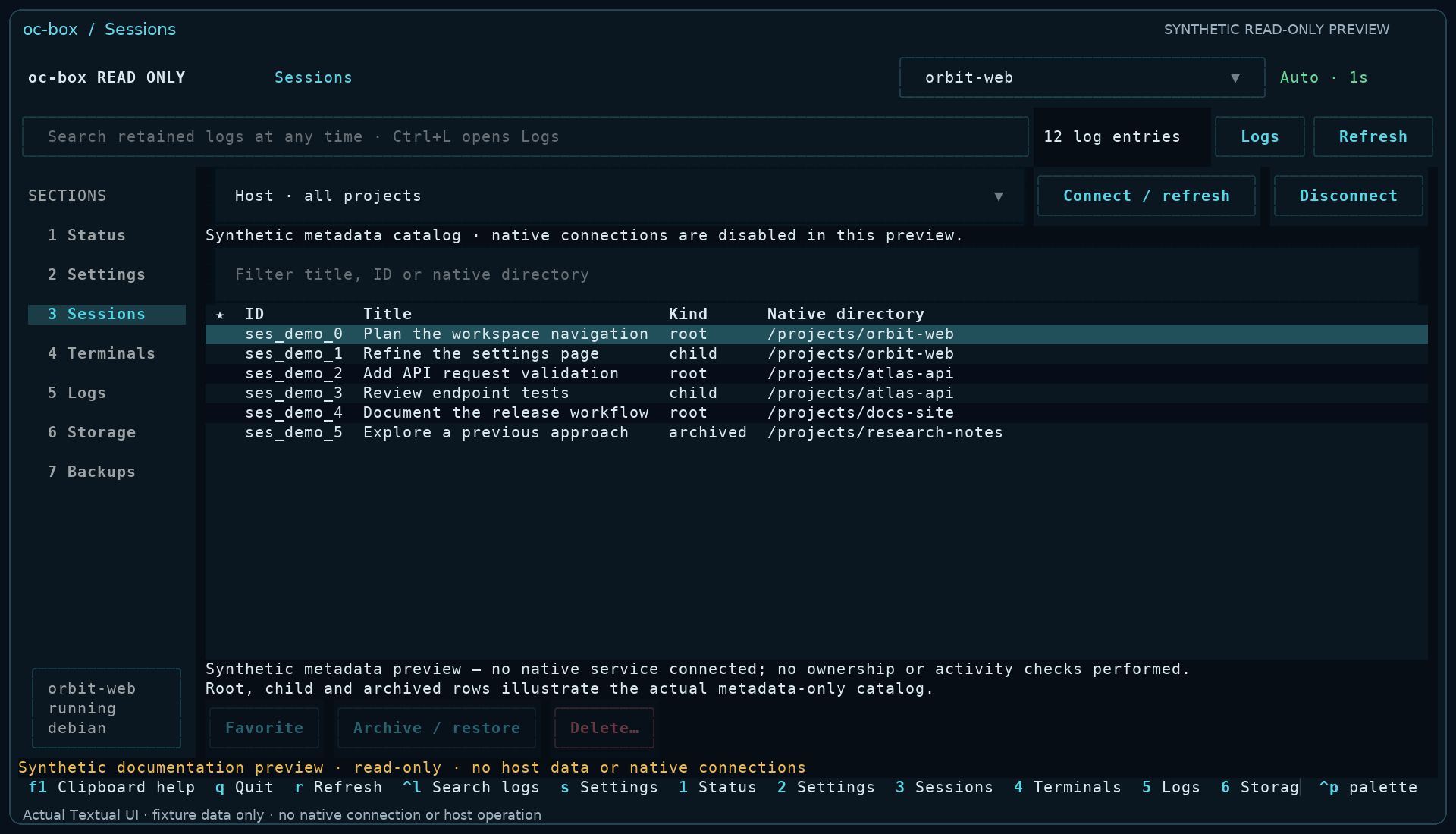
The dashboard adds favorites and clearer connection feedback. Its experimental embedded terminal reuses the native persistent session shell rather than inventing a replacement.
One detail worth remembering: closing a browser window does not necessarily stop a turn already running in the workspace. Client windows and the work itself are not the same thing.
“Can you look at this screenshot?” is much easier now
Screenshots are often the quickest way to explain a layout problem. PDFs and images can also be useful context—but files on the host are not automatically files inside the container.
There are now several deliberate ways across that boundary.
On supported direct Konsole and Kitty clients, native TUI importing can turn a supported image or PDF pathname paste into a private copy inside the workspace. Optional image-preview support can enable visuals in compatible native clients.
Path importing is enabled by default on supported clients: a qualifying pathname paste anywhere in that client authorizes the copy without a per-file confirmation. Save the host-drop preference as disabled if that is not what you want.
The development line also adds an independent, opt-in clipboard shortcut:
oc-box --project ~/devel/demo --host-clipboard
Copy image pixels or supported local image/PDF files, then press Ctrl+Y in the opted-in native client to import them. Ctrl+V is unchanged. There is no background clipboard polling or automatic Send. Host clipboard support uses wl-clipboard on Wayland or xclip on X11.
Copied-file imports follow ordinary symlinks by default, including linked folders; --no-host-clipboard-symlinks enables stricter handling. Terminal, OpenCode-version, and file-size limits apply; understanding PDF content also depends on the model.
For browser users, the optional attachment mode adds a file chooser and file drops to the native composer. For people who prefer approving every image individually, a separate host-confirmation broker is available too.
Useful context, without silently giving the agent the run of your home directory.
Share one folder, rather than mounting everything
Sometimes copying one screenshot is not enough. You might want the agent to read a changing reference file or inspect a small collection of design images.
Temporary live sharing handles that:
oc-box share ~/Pictures/DesignReferences --project ~/devel/demo
After confirmation, the running workspace receives temporary read-only tools for that path. No container reset or permanent mount is needed. Stop sharing to end further reads.
Read-only does not mean private once read. Shared folder contents include hidden files and later additions. The agent may copy information or send it to a model provider, and disconnecting cannot take it back. Choosing the narrowest useful file or folder remains the sensible approach.
Back up the environment—not just the Git repository
Git is essential, but it is not a backup of an entire working environment.
Since the previous post, oc-box has gained encrypted full and portable workspace backups, using the standard age encryption format.
A full backup includes the project, private home and session state, and container OS image. A portable backup leaves out the OS image so it can be rebuilt later—useful when you want a smaller archive and can reinstall system packages.
Restores use fresh workspace resources and do not overwrite an existing destination. There are also separate encrypted conversation-history backups when you want to preserve sessions rather than the whole environment.
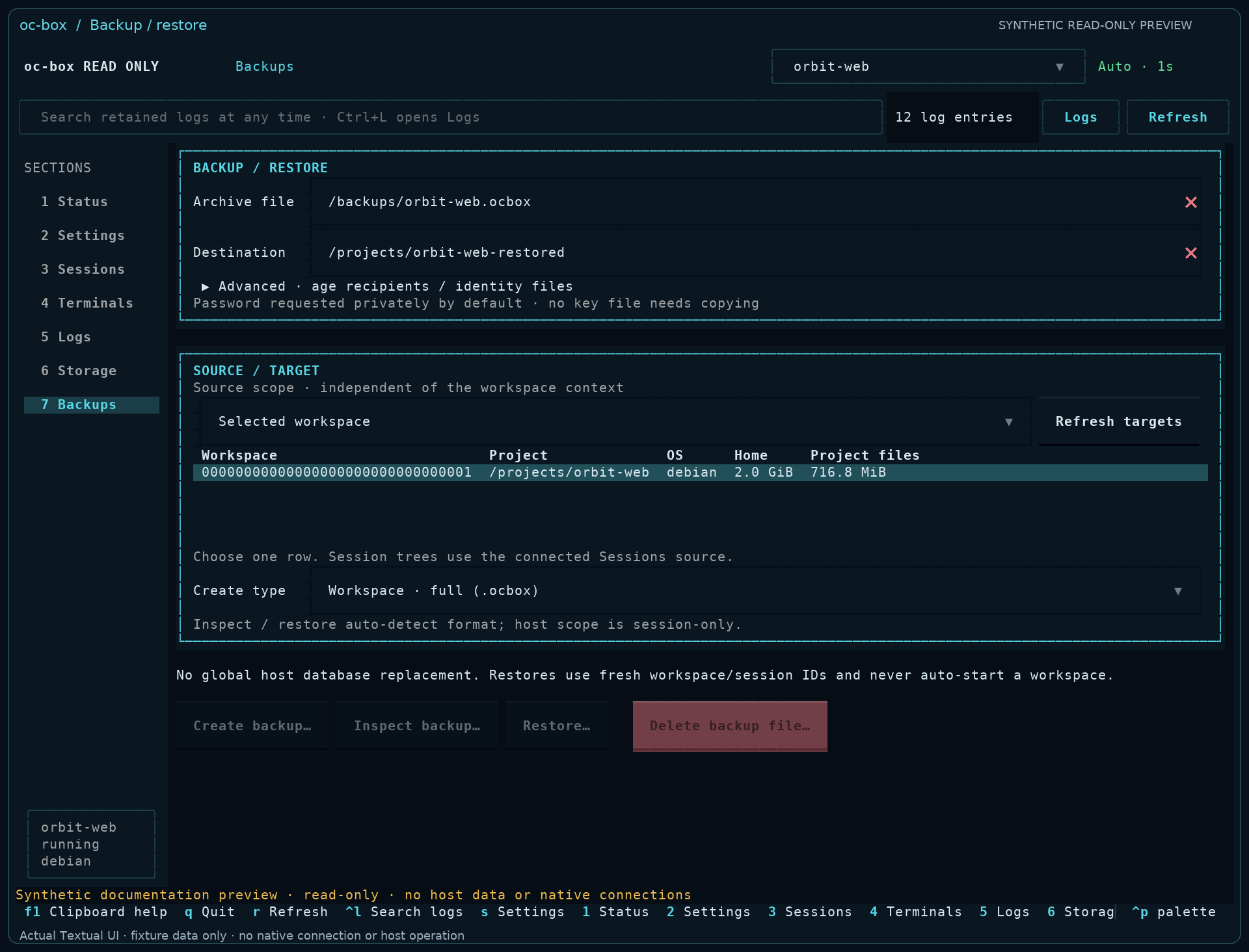
The dashboard makes those controls easier to discover, but it is still experimental: a full restore reported success while its follow-up integrity check refused the result, leaving restored integrity unconfirmed. Some portable-backup and storage UI checks also remain unfinished. That work is distinct from the established CLI workflows.
One important housekeeping detail: the global host credential vault is not included in workspace backups. Back up its encrypted file separately. Workspace archives can still contain sensitive project files, saved authentication, and conversation history, so protect their keys accordingly.
The vault has become more convenient—and its defaults have evolved
The encrypted vault, project-level credential choices, and masked prompts remain, including deliberate reveal for secret values while passphrases stay masked.
The OpenCode 2.x default has changed since the previous article: when a host vault exists and no explicit workspace policy overrides it, a fresh workspace-service launch uses all current vault entries. Changes apply on the next such launch, not when another client attaches.
That makes “use my current development credentials” easier. It is a convenience choice, not a minimal-access policy: projects that should receive less can use selected credentials.
Without a vault, env-file compatibility remains; explicit workspace policies are still available, and native OpenCode saved/OAuth authentication continues independently. Adding vault dependencies does not itself create a vault or change a workspace policy.
As before, encryption protects credentials at rest. Once you deliberately deliver a key into the development environment, its agent and tools can read it. Scoped tokens still matter.
Less waiting around—and a clearer picture of recovery
There has also been less visible work on keeping conversation history dependable.
The newest optimization reduces repeated startup work during the history-copying phase of eligible post-stop recovery, while keeping the conversation checks.
It is a targeted improvement—not a promise that every sync or the entire shutdown is now several times faster. Normal live/manual sync keeps its existing approach, and waiting for active work remains intentional.
Progress feedback is clearer too, with an updating elapsed-time indicator rather than repeated lines of “still working.”
Recovery aims to preserve checked, saved conversations after a verified stop. It does not magically finish interrupted tasks or turn failed work into success. Uncertain results stay visible.
Easier upgrades, without installer juggling
Stable and development are now explicit release channels. Development is an opt-in to a published prerelease—not an instruction to install whatever happens to be at branch HEAD.
With a supporting launcher, existing installations can request the optional tools independently:
oc-box upgrade --devel --vault       # Add vault support
oc-box upgrade --devel --tui         # Add the dashboard
oc-box upgrade --devel --vault --tui # Add both
The flags are additive: you do not lose an existing extra by leaving its flag out. They can add dependencies even when the selected release is already installed. A plain --devel selects the channel; it does not request optional extras for the first time.
GitHub installations keep optional dependencies private. Recognized uv and pipx installations use their own verified manager, not a second GitHub installation. Unknown setups get guidance rather than a guessed update.
If your current launcher does not recognize the new flags, perform its normal owning-manager update first. For a channel-aware GitHub installation, that can mean oc-box upgrade --devel before requesting extras. Much older launchers have a separate documented bootstrap route.
For newcomers, the recommended first installation includes both optional features:
curl -fsSL --proto '=https' --tlsv1.2 https://raw.githubusercontent.com/groopcd/oc-box/master/install.sh | sh -s -- --devel --with-vault --with-tui
Run it on the Linux host as your regular user, not inside oc-box or with sudo. You need host OpenCode 2.x, Python 3.10+, Git, curl, and working rootless Podman. The getting-started guide covers networking/resource prerequisites, vault setup, and first launch. Review the installer first if preferred.
Stable does not include this dashboard yet. Switching launchers or channels is also not a rollback of workspace or session data.
More approachable, still deliberately transparent
The documentation now leads with OpenCode 2.x, a newcomer quick start, task-oriented guides, and an illustrated TUI walkthrough. Retained OpenCode 1.x support has its own legacy section rather than disappearing from the project.
There are still rough edges. Beyond the unfinished dashboard checks, the embedded terminal is experimental, attachment/browser behavior depends on the supported setup, and combined browser validation remains incomplete. The release notes distinguish what was tested from what remains unconfirmed.
The basic boundary has not changed either: rootless containers share the host kernel, the mounted project is writable, and supplied credentials and files can be used by the agent. This is a more manageable development workspace—not an absolute security guarantee.
What I like about where oc-box is heading is that the powerful path is becoming easier to understand: give the agent a useful Linux environment, keep the work persistent, and make the surrounding management less of a chore.
oc-box remains GPL-3.0-or-later, developed openly with disclosed AI assistance.
If that sounds useful, try the development release with a non-sensitive project, look around the dashboard, and let me know what feels good—or what still gets in the way. Feedback from different distributions, terminals, MCP setups, and hardware is especially welcome.
Leave a Reply